Installing Lantern
Every shop gets its own Lantern installers. They carry your shop’s details, so any computer they’re run on joins your account and shows your branding. There’s nothing to type and no code to enter.
Your installers
Go to Installers. There’s one installer for each kind of computer:
| Installer | For |
|---|---|
Windows (.exe) |
Windows 10 and 11, 64-bit. Windows on ARM isn’t supported yet. |
macOS (Apple Silicon) (.pkg) |
Macs with an Apple M-series chip |
macOS (Intel) (.pkg) |
Older Macs with an Intel processor |
Click Generate to build one. It takes about 5 to 10 minutes, and Mac takes a little longer. When it says Ready, you can Download Installer or Copy Download Link. If a build fails, click Try Again.
To check which kind of Mac you have, open the Apple menu and choose About This Mac. A Mac that lists a Chip such as Apple M2 needs Apple Silicon; one that lists an Intel Processor needs Intel.
Your install link
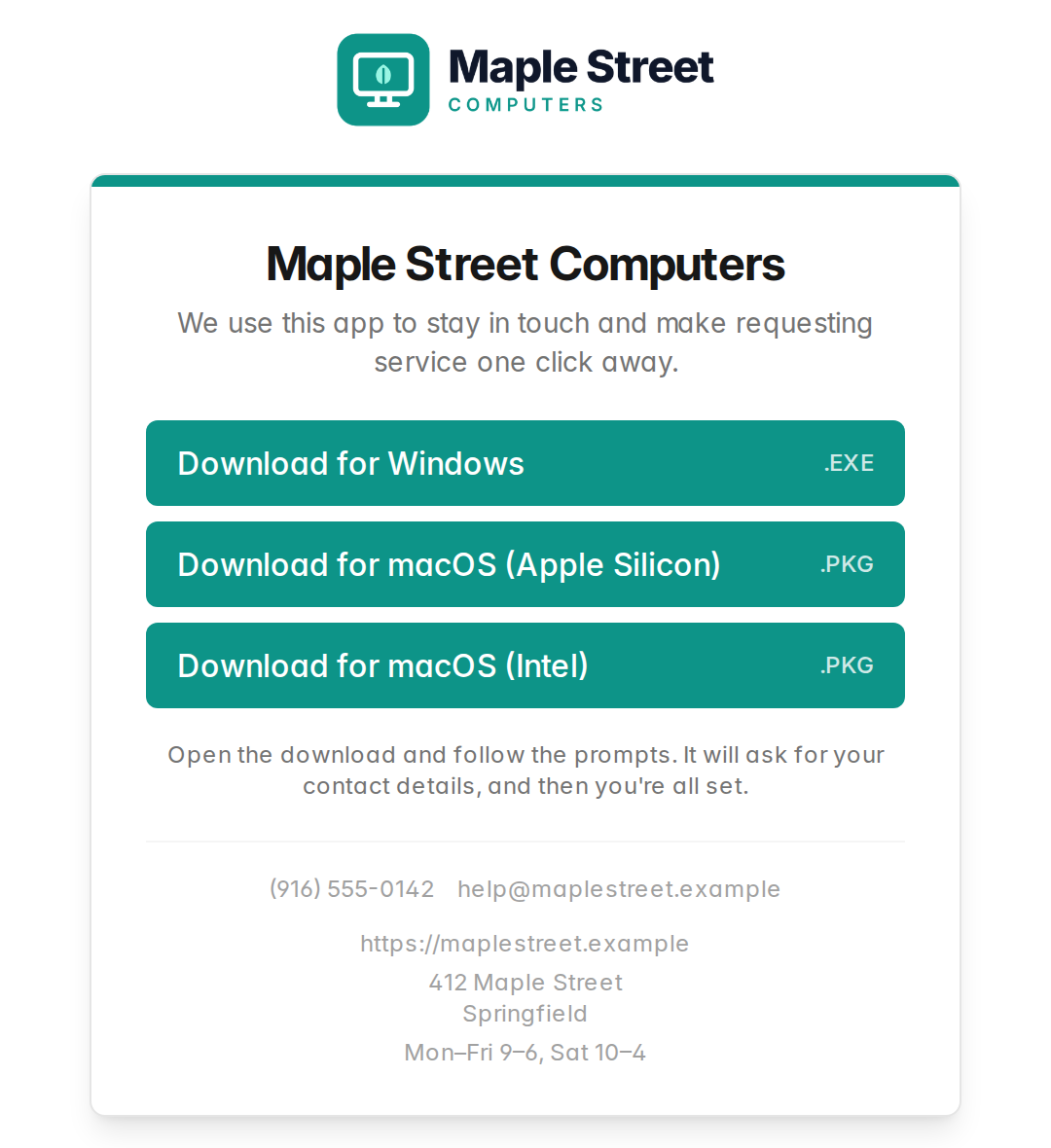
Under Branded Installer Link, click Copy Link to get a web address you can text or email to a customer, or print on a card at the counter. It opens your shop’s download page:
- your shop’s name and a line saying you use this app to stay in touch
- a Download button for the customer’s computer, with Need a different version? for the others
- your phone, email and website
On a paid plan the page shows your logo and colors. On Free it uses Lantern’s standard look.
Rotate gives you a new link and rebuilds your installers. Do it if a link has been shared somewhere it shouldn’t be: copies of the old installer stop adding new computers, and computers that already have Lantern carry on as they are.
Installing on Windows
- Run the installer while signed in as the person who uses the computer. It doesn’t need administrator rights.
- Lantern installs itself and opens a short Who is this computer for? window. Your customer enters their name, phone and email, and clicks Finish Setup. These details appear on the device in your dashboard, and they’re filled in for your customer whenever they request service.
- Your shop’s icon appears in the system tray, and the computer shows up under Devices within a few minutes.
If your customer closes the setup window without filling it in, Lantern carries on without their details. You can add them on the device page later.
Lantern runs for the Windows account it was installed under. On a computer shared by several people, run the installer once while signed in to each account that should have it. It still counts as one device.
Installing on a Mac
- Open the installer package. The Mac asks for an administrator’s name and password, because Lantern installs to the Applications folder.
- Someone needs to be signed in to the Mac while it installs. The Who is this computer for? window then opens for them, as on Windows.
- Your shop’s icon appears in the menu bar. Lantern also shows in the Dock, and clicking it opens the Request Service window.
macOS may show a notice that background items were added. That’s Lantern setting itself to start at login and to keep itself up to date.
One check on a Mac needs an administrator account: Unexpected shutdowns can only read the Mac’s crash records if the signed-in person is an administrator. On a standard account it reports that it can’t tell.
Installing on a computer that already has Lantern
Running the installer again asks This computer is already set up. Do you want to set it up again? Choose Yes to reinstall. The computer keeps its place in your dashboard, with its history, and a device you had deactivated comes back.
Installing without the setup window
To install on a machine without anyone clicking through, run the Windows installer with --silent:
Lantern-win-x64-Setup.exe --silent
It shows no windows and skips Who is this computer for?, so add the customer’s details on the device page afterwards. If Lantern is already installed, it leaves it alone; add --force to reinstall anyway.
Run it as the signed-in user, not as SYSTEM. Lantern lives in the user’s own profile, so an install run by a remote tool as SYSTEM won’t put your icon in that user’s tray.
On a Mac, install the package from Terminal with sudo installer -pkg <installer>.pkg -target /. Someone must be signed in to the Mac at the time.
When a computer can’t be added
Each plan covers a number of computers: 10 on Free, 250 on Starter and 1,000 on Growth. When every place on your plan is used, new installs are turned away. Your customer sees a short message asking them to call your shop, with your phone number, and nothing about plans or limits. You get an email at most once a day saying a computer couldn’t be added, with a link to change your plan.
To make room, change your plan or deactivate computers you no longer look after.
Updates
Lantern keeps itself up to date. Each computer checks for a new version about once an hour and installs it quietly in the background. There’s nothing for you or your customer to do.
Removing Lantern from a computer
Remove Lantern from the dashboard, not from the computer:
- Open the device under Devices.
- Under Danger Zone, click Deactivate this Device, type
DEACTIVATE, and click Deactivate Permanently.
At its next check-in, Lantern switches itself off on that computer: it closes, and it no longer starts when the computer does. The device stops counting toward your plan straight away. Its record stays in your dashboard, read-only, under Deactivated, and reinstalling Lantern on that computer brings it back.
To deactivate several computers at once, tick them in the Devices list and use Deactivate selected.
Troubleshooting
Is Lantern running? On Windows, look for Lantern.Agent.exe in Task Manager. On a Mac, look for Lantern in Activity Monitor. Lantern restarts itself within a few minutes if it’s closed.
A computer isn’t checking in. It needs an internet connection and has to be switched on. The device page shows when it last checked in, and the dashboard lists computers that have gone quiet. Requests your customer sends while offline are kept and sent at the next check-in.
Log files, if we ask for them:
| Windows | Mac | |
|---|---|---|
| Lantern | %LOCALAPPDATA%\Lantern\logs |
~/Library/Logs/Lantern |
| Installer | %TEMP%\LanternBootstrapper.log |
/var/log/lantern-bootstrapper.log |
| Updates | %LOCALAPPDATA%\Lantern\Updater\updater.log |
/var/log/lantern-privileged-updater.log |
Email them to support@repairtechsolutions.com.