TechSuite Integrations
Integrations send your TechSuite reports where your shop already works: your PSA ticket, a Slack or Teams channel, or any system that accepts a webhook.
Set them up on the Integrations page of the Online Dashboard. Only the account owner can change them. Integrations are included on the Plus and Pro plans, and during your trial.
You can run a PSA integration and webhooks at the same time. For example, post every report to your Syncro ticket and send a Slack message when a procedure needs a technician.
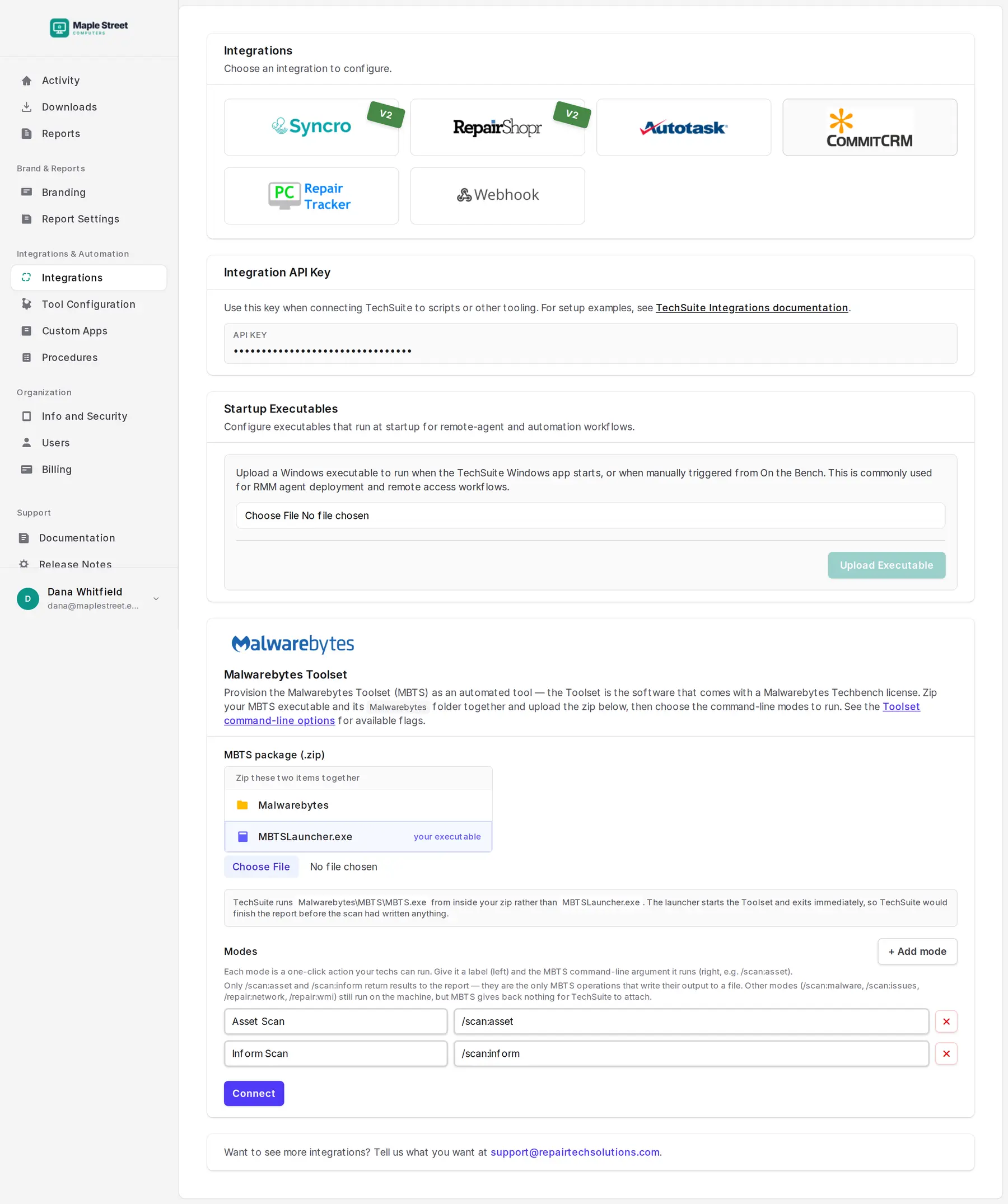
How reports find their ticket: enter the ticket number in TechSuite before you run a procedure (or pass --ticket on the command line). When the report uploads, TechSuite attaches it to that ticket.
Syncro
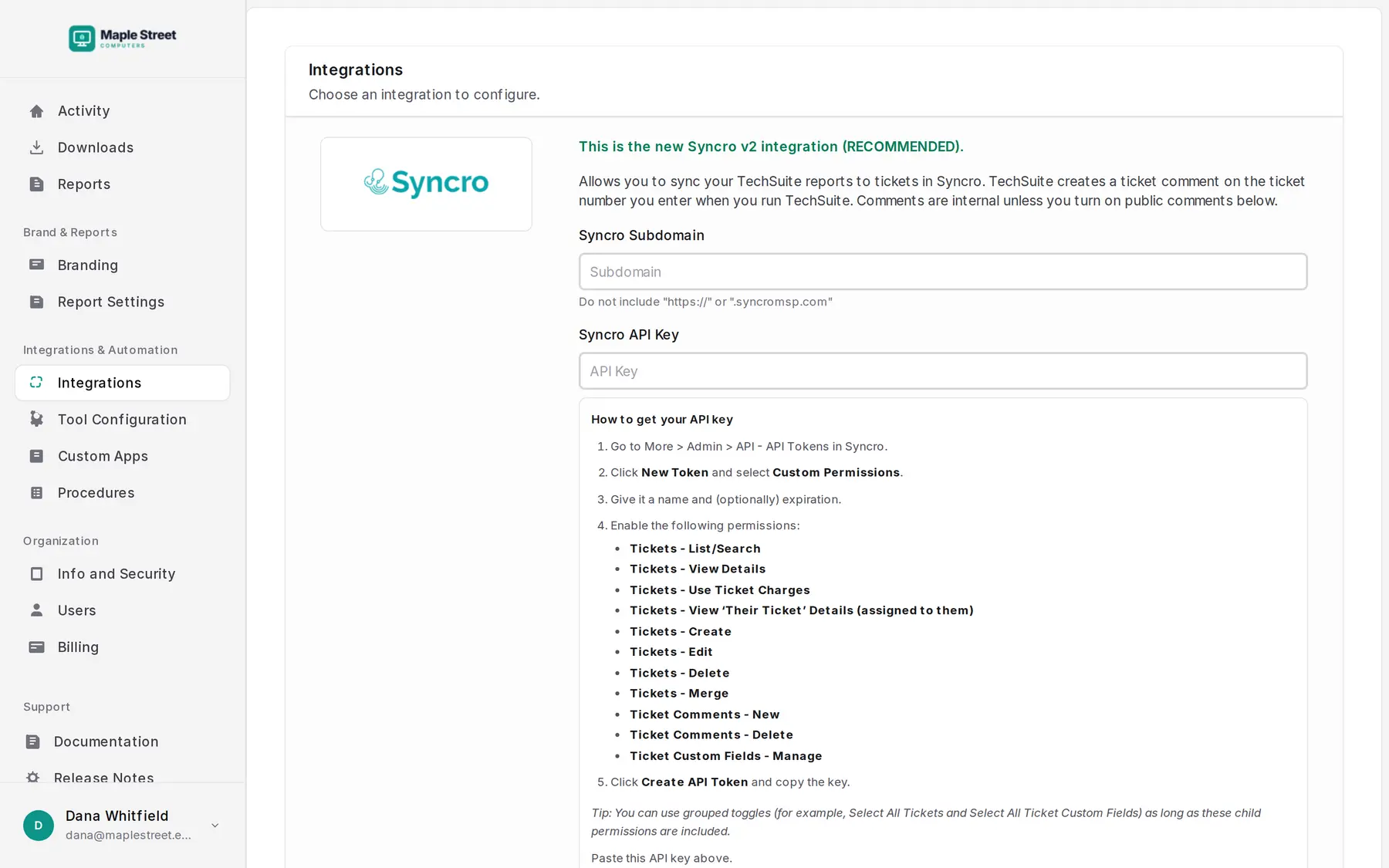
TechSuite posts each report to the matching Syncro ticket as a comment, with the technician, customer, duration and a link to the full report. Comments are private (internal) unless you tick Post the report comment as a public comment.
To connect:
- In Syncro, go to More → Admin → API → API Tokens and click New Token.
- Choose Custom Permissions and turn on:
- Tickets – List/Search
- Tickets – View Details
- Tickets – Use Ticket Charges
- Tickets – View ‘Their Ticket’ Details
- Tickets – Create
- Tickets – Edit
- Tickets – Delete
- Tickets – Merge
- Ticket Comments – New
- Ticket Comments – Delete
- Ticket Custom Fields – Manage
- Create the token and copy it.
- In TechSuite’s Integrations page, click Syncro, enter your Syncro subdomain (the part before
.syncromsp.com) and the token, and save.
Don’t use the RepairTech key from Syncro’s App Center. That was for the old integration. If your shop still uses the old one, it appears as Syncro V1; switch to the current integration with a new token.
RepairShopr
This works the same way as Syncro: create an API token in RepairShopr under More → Admin → API → API Tokens, with the same custom permissions, then enter your RepairShopr subdomain and the token on the Integrations page. You can also choose which report layout the comment links to.
Autotask
TechSuite attaches each report to the matching Autotask ticket.
- In Autotask, create an API user.
- On the Integrations page, click Autotask and enter the API user’s username and password.
- When you run TechSuite, enter the Autotask ticket number in its usual form, for example
T20260918.0042.
CommitCRM
TechSuite emails each report to CommitCRM, which attaches it to the ticket.
- Set up CommitCRM’s Email Connector module.
- Add
commitcrm@repairtechsolutions.comto your CommitCRM contacts. - On the Integrations page, click CommitCRM and enter your CommitCRM Public Email Address, the address your Email Connector reads.
TechSuite emails the report, as an attachment, from commitcrm@repairtechsolutions.com with the ticket number as the subject. Enter the CommitCRM ticket number in TechSuite.
PC Repair Tracker
- Ask PC Repair Tracker support for the TechSuite integration module and its POST URL.
- On the Integrations page, click PC Repair Tracker, paste the URL and save. TechSuite sends a test report to check it works.
- Run TechSuite with a PC Repair Tracker ticket number. The report appears on the ticket when it uploads.
Webhooks
A webhook sends a message to a URL of your choice at key moments of a job. Use it to post to Slack, Discord or Microsoft Teams, to trigger a Zapier or Make automation, or to feed your own system.
On the Integrations page, click Webhook, paste the URL, choose the events you want, and click Test & Apply. TechSuite sends a sample Report Completed message, and saves the webhook only if your URL accepts it.
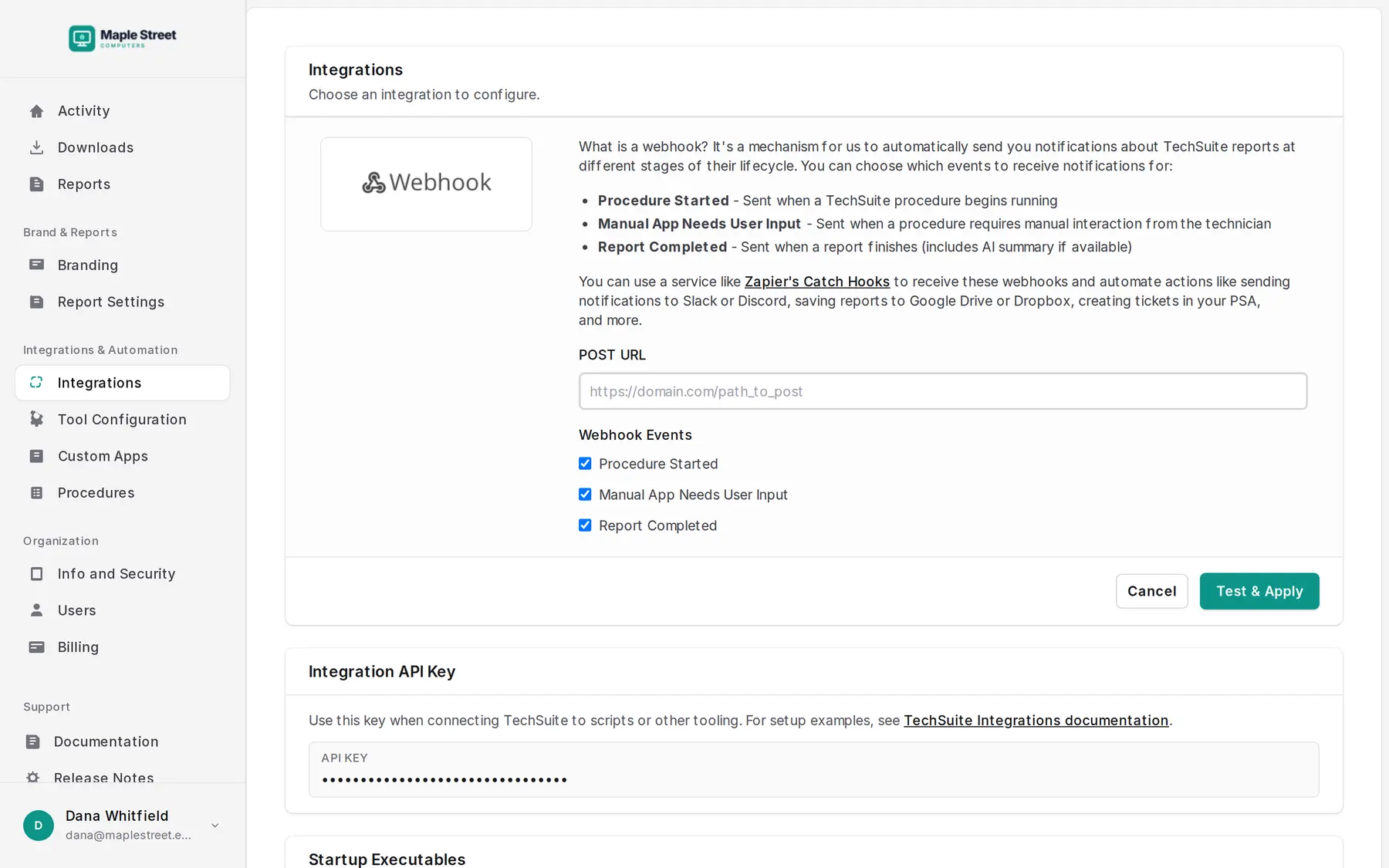
Events
| Event | When it’s sent |
|---|---|
| Procedure Started | A procedure begins running in TechSuite |
| Manual App Needs User Input | A procedure is paused, waiting for a technician |
| Report Completed | A report finishes uploading. If AI summaries are on, this waits for the summary and includes it. |
Slack, Discord and Teams
Paste the channel’s incoming webhook URL and TechSuite formats the message for that service automatically:
- Slack: a
hooks.slack.comURL - Discord: a channel webhook URL
- Microsoft Teams: a Workflows or Office 365 connector webhook URL
Payload
For any other URL, TechSuite sends a POST with a JSON body. Fields with no value are left out.
Report Completed:
{
  "event_type": "report_completed",
  "logpath": "https://repairtechsolutions.com/reports/123456",
  "customer_name": "Jane Smith",
  "ticket_number": "4821",
  "procedure_name": "Malware Removal",
  "tool": "TechSuite",
  "tech_email": "tech@yourshop.com",
  "status": "finished",
  "started_at": "2026-09-18T14:05:00Z",
  "updated_at": "2026-09-18T14:42:10Z",
  "ai_summary": "Removed two adware programs and reset the browser proxy…"
}
Procedure Started sends the same fields without logpath and ai_summary. Manual App Needs User Input sends current_task (the tool that’s waiting) instead of procedure_name, and its status is manual_interaction.
The logpath link opens the report in the dashboard, so the person clicking it needs to be logged in.
Malwarebytes Toolset
If your shop has a Malwarebytes Techbench license, you can run the Malwarebytes Toolset (MBTS) from TechSuite like any other tool, with its results in the report.
- On the Integrations page, find Malwarebytes Toolset and upload your MBTS
.zip: the one containingMBTSLauncher.exeand itsMalwarebytesfolder. - Choose the scans you want. Asset Scan (
/scan:asset) and Inform Scan (/scan:inform) are set up for you. Add any other MBTS command-line mode as a new mode. - Click Connect. TechSuite adds the Toolset to My Apps, ready to put in a procedure.
Only the Asset and Inform scans write a log TechSuite can show on the report. Other modes, such as threat scans and repairs, run normally but their report section is empty. The package is about 250 MB and counts toward your hosted storage.
Startup Executables
Upload a Windows program under Startup Executables and TechSuite runs it every time it starts on a computer. Most shops use this for their remote support tool. You can also run it on demand with Launch remote session on On the Bench.
ScreenConnect
Put TechSuite in your ScreenConnect Toolbox so it’s one click away in every remote session:
- Download TechSuite from the dashboard’s Downloads page.
- In ScreenConnect, add
TechSuite.exeto your Toolbox (shared or personal). - In a session, run TechSuite from the Toolbox on the customer’s computer.
RMMs and scripts
TechSuite runs from any RMM that can run a PowerShell script. See Running TechSuite from an RMM.
Your shop’s Integration API Key is on the Integrations page, and it’s also built into the download links on the Downloads page. Keep it private.
Want an integration we don’t have? Email support@repairtechsolutions.com.