Checks, Pop-ups and Policies
Lantern runs seven checks on every computer each time it checks in, about every 4 hours. Each check’s result shows on the device page under Monitors, and anything wrong shows on your dashboard. A policy decides which problems your customer is told about, how sensitive the checks are, and what’s in your tray menu.
The checks
Listed most urgent first. When a computer has more than one problem, the most urgent is the one your customer hears about.
| Check | What it looks for | Computers | Default |
|---|---|---|---|
| Remote access software | Screen-sharing tools running, such as AnyDesk or TeamViewer. On a home computer that’s often a support scam in progress. | Windows and Mac | Alerts when one is running |
| Drive health | The drive reporting that it’s failing (SMART on Windows), or repeated disk errors on a Mac | Windows and Mac | Looks back 3 days |
| Unexpected shutdowns | Blue screens on Windows and kernel panics on a Mac. Holding the power button down doesn’t count. | Windows and Mac | Looks back 14 days |
| Antivirus | Whether Windows Security reports an antivirus product that’s running | Windows | |
| Disk encryption | Whether FileVault is on | Mac | |
| Free disk space | Free space on the main drive | Windows and Mac | Alerts below 10% free |
| Battery health | How much charge the battery holds compared with when it was new | Laptops | Alerts below 80% |
A check that can’t get an answer, for example a drive that doesn’t report its health, shows as unknown rather than healthy. Desktops never report battery health.
What your customer sees
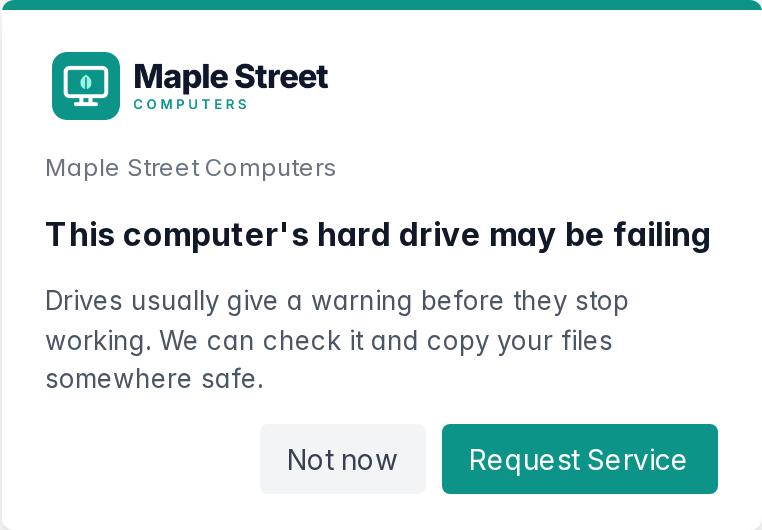
When a check finds a problem, your customer sees a small pop-up in the bottom corner of the screen in your shop’s name, with Not now and Request Service. Request Service opens the request form with the problem already described, and the request you receive says which check prompted it.
| Check | Your customer reads |
|---|---|
| Remote access software | Someone may have remote access to this computer. Screen-sharing software is running on it. If you weren’t expecting that, we can check it for you. |
| Drive health | This computer’s hard drive may be failing. Drives usually give a warning before they stop working. We can check it and copy your files somewhere safe. |
| Unexpected shutdowns | This computer has been crashing. It has been shutting down unexpectedly. We can find out why. |
| Antivirus | This computer’s antivirus isn’t running. We couldn’t find any antivirus protection running. We can get it set up for you. |
| Disk encryption | The files on this Mac aren’t encrypted. If this Mac were lost or stolen, someone could read what’s on it. We can turn encryption on for you. |
| Free disk space | This computer is running out of space. A nearly full drive slows things down and can stop updates from installing. We can help free up space. |
| Battery health | This laptop’s battery is worn out. It won’t hold a charge like it used to. We can replace it for you. |
To keep from nagging:
- At most one pop-up a day, across all checks, for the most urgent problem.
- No pop-ups at the first check-in after installing, while your customer is still getting to know the app.
- Only for the checks you choose. Turn a check’s pop-up off in a policy and it keeps watching quietly: the problem still shows on your dashboard, and your customer isn’t told.
To see exactly what your customers see, use the preview in Settings → Shop Branding. The Alert tab shows each check’s pop-up with your branding.
Your own remote access software
If your shop uses one of these tools for remote support, tell Lantern, so your own sessions don’t set off the scam warning:
- Go to Settings → Policies.
- On the Your own remote access software card, click Change, tick your tools, and click Save.
Lantern recognizes AnyDesk, TeamViewer, UltraViewer, ScreenConnect, ConnectWise Control, LogMeIn, GoToAssist, Splashtop, Supremo, Ammyy Admin, AeroAdmin, RustDesk, DWAgent, RealVNC, TightVNC, UltraVNC and TigerVNC.
Your tools no longer alert and don’t show your customer a pop-up; the device page just notes that one is running. Any other tool still alerts, even while one of yours is running at the same time. The list applies to every computer in your account.
Policies
A policy decides, for the computers it covers:
- which checks show your customer a pop-up
- the settings for each check, such as how little free space counts as low
- how often your customer is reminded you’re there
- what’s in the tray menu
Every account has a Default policy with every pop-up on. You never have to set one up: every computer uses Default until you give its group another policy.
Go to Settings → Policies to see them. Each shows how many checks prompt the customer, how many devices and groups use it, and its reminder period.
Creating or changing a policy
- Click New Policy, or Edit next to an existing one.
- Give it a Policy Name.
- Under What the customer is told about, tick each check whose pop-up your customer should see. Untick one to keep watching quietly.
-
Adjust the settings where a check has them:
Check Setting Default Range Drive health Look back over 3 days 1 to 30 Unexpected shutdowns Look back over 14 days 1 to 90 Free disk space Alert below 10% free 1 to 50% Battery health Alert below 80% of original capacity 30 to 95% - Set Remind the customer after (see below).
- Click Create Policy or Save Changes.
Changes reach each computer at its next check-in. Deleting a policy moves everything that used it back to Default. Default can be changed but not renamed or deleted.
Which policy a computer uses
A computer uses its group’s policy. If it isn’t in a group, or its group uses the default, it uses Default. The device page shows which policy applies and where it comes from.
The check-in reminder
If nothing else has come up, the Request Service window opens by itself after a while, to remind your customer your shop is one click away. Remind the customer after sets how long: anywhere from 7 to 365 days, and 90 by default. The first reminder comes one full period after Lantern is installed.
The tray menu
The menu on your shop’s icon always starts with Request Service. Under the Tray Menu heading on the Edit Policy page, you can add your own items below it:
- Info: a line of text, such as
Call 916-555-0134or your opening hours - Link: a label and a web address, such as your website or a booking page
Choose the Type, enter the Label (and URL for a link), and click Add. Click Remove to take one away. Changes save straight away and reach each computer at its next check-in.