Getting Started with Lantern
Lantern is a small app your shop installs on your customers’ computers. It watches for the problems that end in a repair, such as a failing drive, repeated crashes or a support scammer on the machine. When it finds one, it tells your customer in your shop’s name and puts a Request Service button in front of them. You see everything on your Lantern dashboard, and every request lands in your inbox.
Your customers never need to know the name Lantern. The pop-ups, the request form and your download page speak as your shop.
Setting up your shop
- Sign up at lantern.repairtechsolutions.com with your name, your shop’s name, your email and a password of at least 12 characters. The Free plan covers 10 computers and doesn’t need a card.
- Add your branding. Go to Settings → Shop Branding and fill in your shop’s phone, email, website, address and hours. Your customers see these on every plan. On a paid plan you can also add your logo, your accent color and your own icons. See Branding.
- Build your installer. Go to Installers and click Generate next to Windows and each Mac version you need. Each one takes about 5 to 10 minutes to build (Mac takes a little longer). Your installers carry your shop’s details, so every computer they’re run on joins your account.
- Install Lantern on a customer’s computer. Download the installer and run it on a machine on your bench, or send your customer your install link. See Installing Lantern.
The dashboard shows a Finish setting up checklist with these steps until they’re done.
Your dashboard
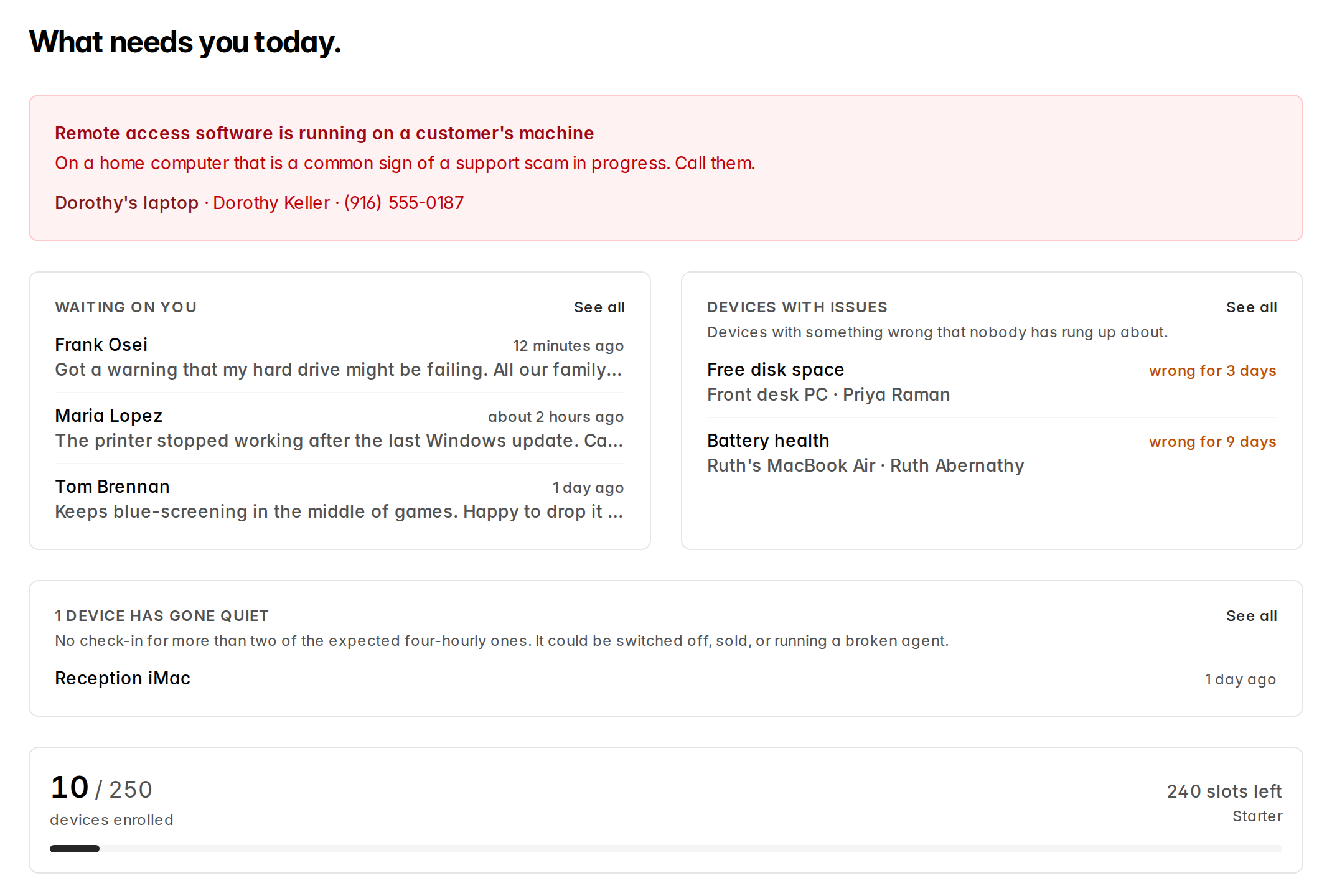
When you log in, the dashboard opens on What needs you today. It shows, most urgent first:
- A red warning when remote access software is running on a customer’s machine. On a home computer that’s a common sign of a support scam in progress, so it lists the customer’s name and phone number: call them.
- Waiting on you: open service requests from your customers.
- Devices with issues: computers with a problem nobody has called you about yet. Each one says how long it has been wrong.
- Devices that have gone quiet: computers that have missed more than two check-ins in a row.
- Your device count and how many your plan has left.
Across the top are Requests, Devices, Groups, Installers and Settings. Click the Lantern logo to come back to the dashboard.
How Lantern works
- Every 4 hours or so, each computer checks in. It runs its checks and sends the results, and it picks up any changes you’ve made, such as new branding or a new policy.
- When a check finds a problem, the computer shows your customer a small, friendly pop-up in your shop’s name, with a Request Service button. Your customer sees at most one pop-up a day. See Checks, pop-ups and policies.
- Every problem also shows on your dashboard, whether or not the customer was told about it, so you can call them first.
- When your customer clicks Request Service, you get an email with their message, their contact details and what’s wrong with the computer. See Requests.
Lantern can’t see your customer’s screen, open their files or control their computer. It isn’t remote access software. Keep using the remote support tool you already use, and tell Lantern it’s yours so your own sessions don’t set off the scam warning.
What your customer sees
- An icon in the Windows system tray or the Mac menu bar with your shop’s name. Its menu has Request Service and any links or details you add, such as your phone number. On a Mac, the app also shows in the Dock.
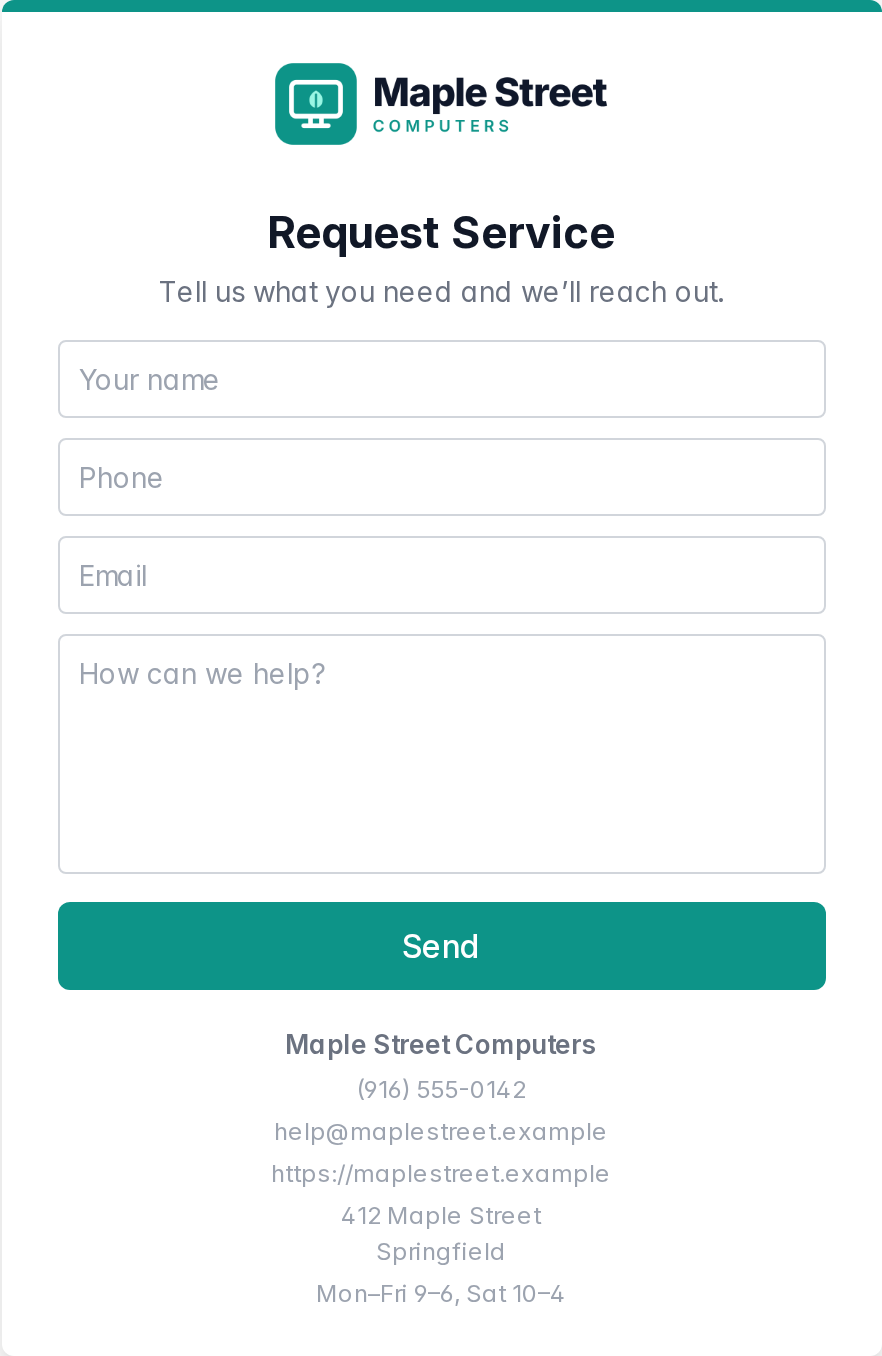
- A Request Service window with your logo, a short form (name, phone, email and “How can we help?”), and your shop’s contact details and hours underneath.
- An occasional pop-up in the corner of the screen when something needs a look, written to reassure rather than alarm.
- A reminder you’re there. If they haven’t needed you for a while (90 days, unless you change it), the Request Service window opens by itself so they remember you’re one click away.
Next steps
- Installing Lantern: your install link, the Windows and Mac installers, and removing Lantern from a computer
- Checks, pop-ups and policies: the seven checks, when your customer is told, and how to change it
- Devices, requests and groups: working with your customers’ computers and their requests
- Settings and billing: branding, email notifications, webhooks and Slack, your team, and your plan