Devices, Requests and Groups
Devices
Devices lists every computer running Lantern for your shop. The Active tab is the default; Deactivated shows computers you’ve removed, and All shows both. Search by computer or customer, and click a column heading to sort by Device, Customer, Group, Issues or Last Checked In.
The Issues column shows how many checks need attention, a green tick when everything’s fine, or a dash if the computer hasn’t reported yet. To put a computer in a group, pick one from its Group menu, or type a new name and press Enter.
The device page
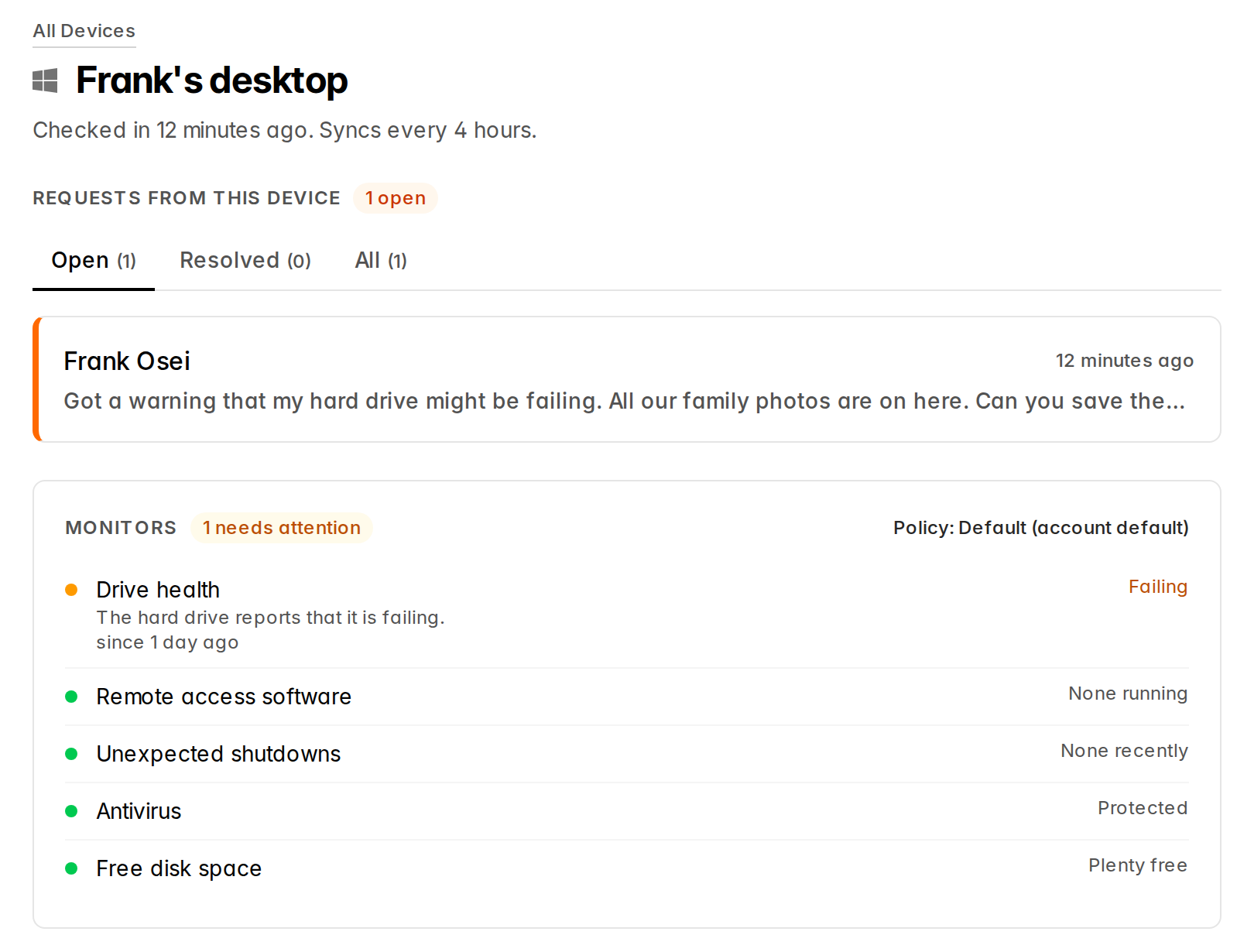
Click a computer to open its page:
- When it last checked in. It turns amber and says overdue after two missed check-ins.
- Requests from this Device, open and resolved.
- Monitors: every check, whether it’s OK, what it found, and how long it has been that way. It also shows which policy the computer uses and where that comes from.
- Details: the Device Name (such as Reception PC), its Group, and the customer’s Name, Email and Phone. Your customer fills these in when Lantern is installed; change them here and click Save. Lantern uses them to fill in the request form for your customer.
- System Information: computer name, Windows or macOS version, processor, memory, main drive and free space, whether it’s a laptop or desktop, the last signed-in user, the Lantern version, and antivirus.
- Danger Zone, to deactivate the device.
Requests
A request arrives when your customer clicks Request Service, either from your shop’s icon or from a pop-up. Lantern fills in the form with the contact details on the device, so they only have to say what they need. If the computer is offline, the request waits and is sent at the next check-in.
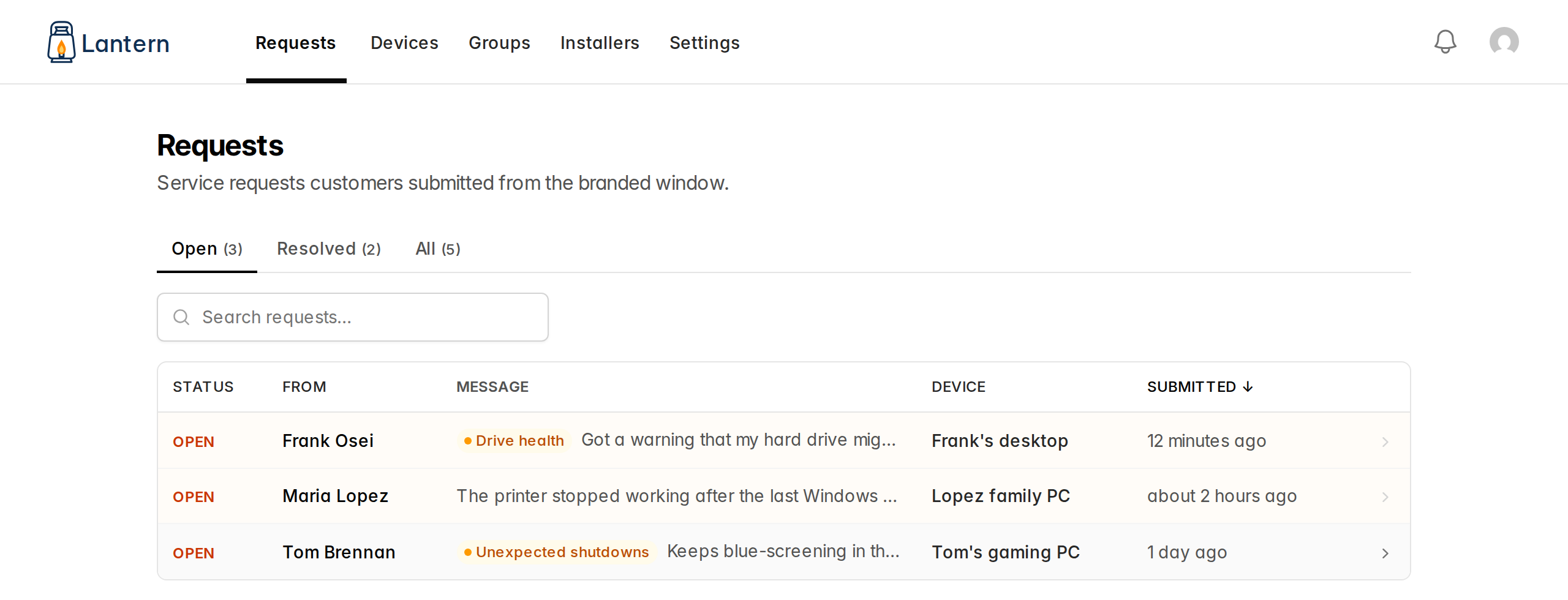
Requests is your inbox. Open is the default tab, with Resolved and All beside it. Each row shows who it’s from, their message, the computer and when it was sent. Requests that came from a pop-up say which check raised them.
Open a request to see:
- Contact: name, phone and email. If your customer left them blank, Lantern uses the details on the device, and says so.
- Message: what they wrote.
- Why they got in touch: the check that prompted the request and what it found, and whether the problem is still there or has since cleared.
- The computer: customer, last check-in and platform, with Open Device.
- This machine also has N things wrong: anything else the checks have found on it, so you know before you pick up the phone.
Click Mark Resolved when you’ve dealt with it, or Reopen to put it back in the inbox.
New requests are emailed to you as they arrive. Choose who gets them in Request Notifications, and send them to Slack or another system with a webhook.
Groups
Groups organize computers by customer, business, location or household: Henderson Dental, the Garcia family, Front office. Go to Groups to see them, with each group’s package, device count, open requests and policy. Computers that aren’t in a group are listed at the top, ready to assign.
Each group has:
- Group Name
- Package: what this customer is sold, such as Silver or Managed. It’s for your reference.
- Monitor Policy: the policy its computers use, or the default
- Notes: anything your team should know. Only your team sees notes; they never appear on the customer’s computer.
A group’s page shows its notes, its computers and its requests. To add a computer to a group, pick the group in the Devices list or on the device page.