· General · Release Notes
TechSuite 2.0 Beta – A Brand New Windows App UI
Hi folks – Back in April we redesigned the online dashboard and said that foundational work would let us move faster on bigger things. Here’s the biggest one so far: TechSuite 2.0, a complete rewrite of the Windows app’s
interface.
It’s available today as an opt-in Beta. You can download it from your Downloads page in the dashboard and try it whenever you like. Your existing TechSuite installs are not affected and will not auto-update to it.
Everything Is New
The Windows app’s UI hadn’t been meaningfully rethought in years. Every screen has been rebuilt from scratch – new layouts, new navigation, real typography, and consistent spacing throughout. The sidebar is now a clean icon rail (Home, Procedures, Tools, System, Reports, Settings) with a connection status indicator that tells you at a glance whether you’re online or working offline.
The customer, ticket, and technician fields now live in a persistent bar across the top of the app instead of being repeated on individual screens.
Dark Mode
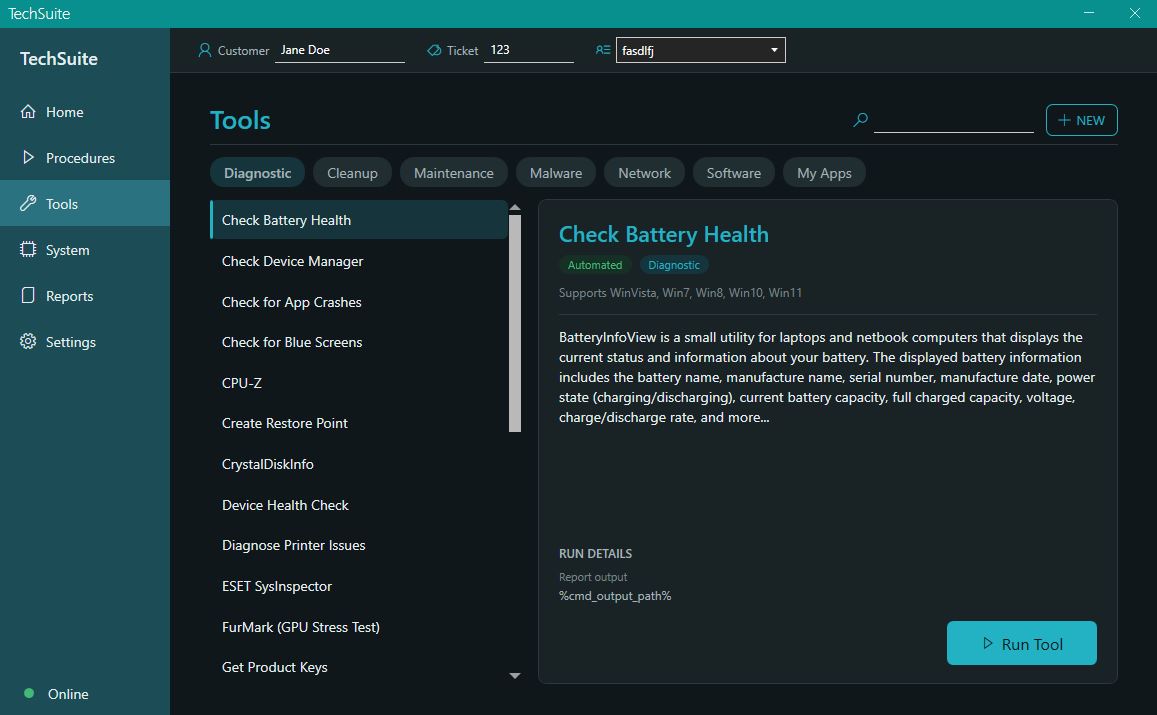
TechSuite now ships with a full light and dark theme. Flip it in Settings → General and the whole app recolors instantly. Your choice sticks between launches.
A Real Home Screen
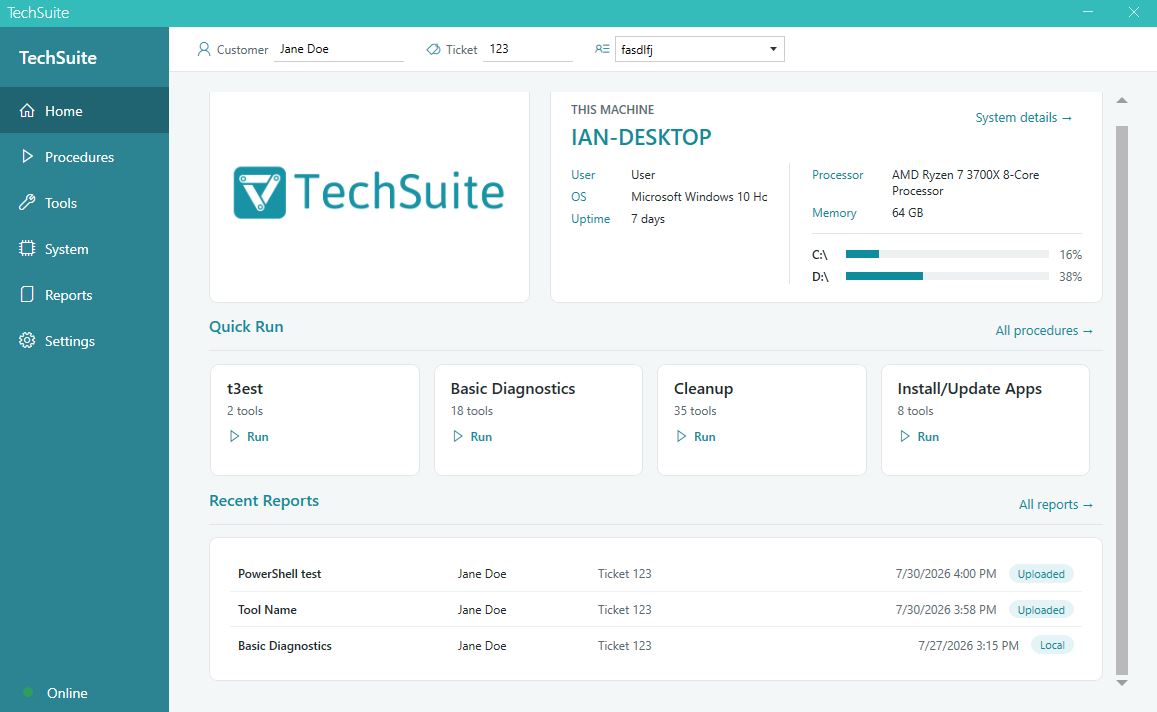
Opening the app used to drop you into a wall of options. Home is now a landing screen built for the bench:
- Your shop’s logo and branding front and center – click it to open your site
- This machine’s identity: name, current user, OS, and uptime
- Instant vitals: CPU, installed memory, and per-drive space usage with color-coded warnings
- Quick Run tiles for your pinned procedures, so your most-used work is one click from launch
- Your three most recent reports, each openable directly
Tools and Procedures, Reorganized
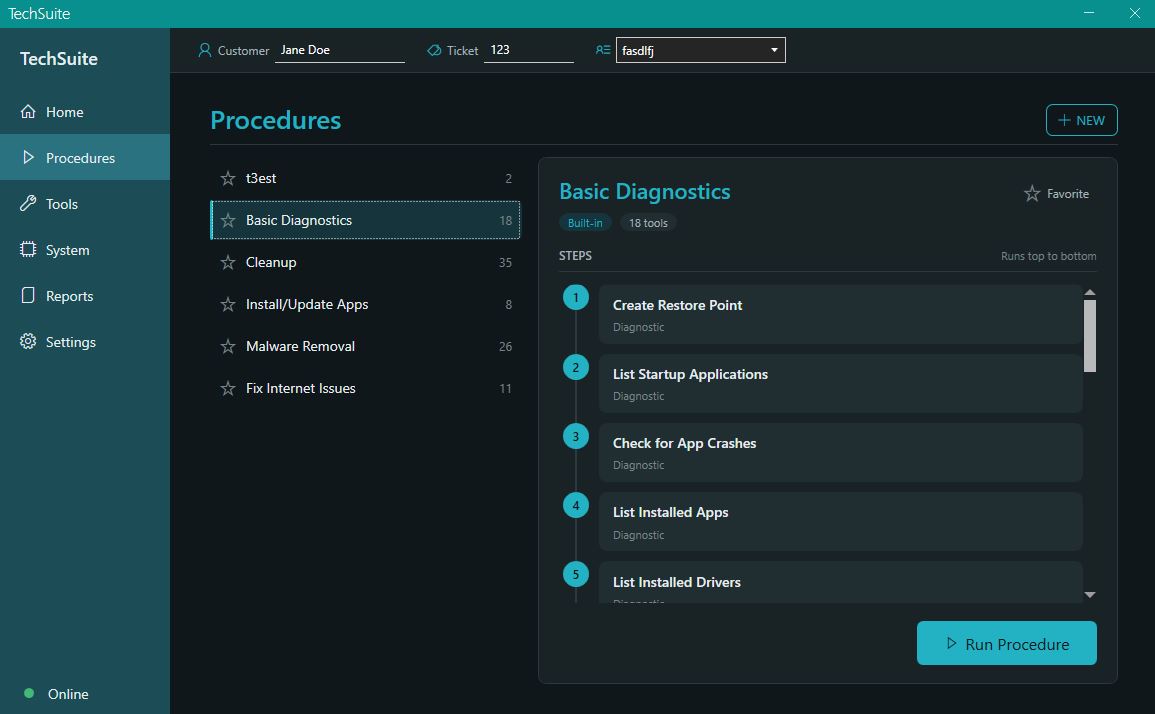
Both pages are now proper master-detail layouts: pick from the list on the left, see the full detail on the right. With 60+ tools that’s a dramatic improvement over hunting through a grid.
Tools now show their logos, supported operating systems, and available run modes. Procedures show their full ordered step list before you commit to running anything, and you can pin your favorites, “Favorite” procedures
become the Quick Run tiles on Home.
The procedure builder got the same treatment. Searching now looks across every category rather than just the one you have selected, and you get a details panel for each tool as you’re picking it, so you know what you’re adding.
Runs You Can Walk Away From
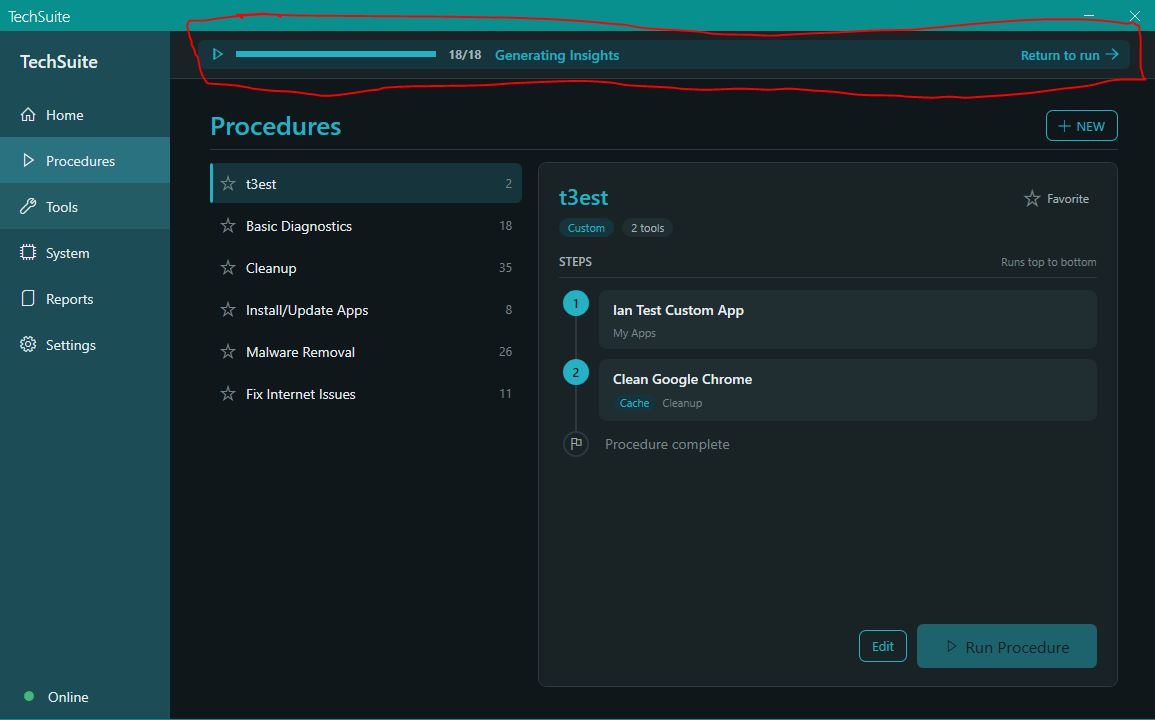
This is one of our favorite changes. A running Procedure no longer holds the app hostage.
The run screen is now a live timeline – completed steps, the current tool, and what’s coming next, with a progress bar and single-line output. But you can navigate away from it mid-run. Go check System info, look at an old report, start building the next procedure. A banner across the top of the app follows you, showing live progress and exactly which tool is running, and clicking it takes you straight back. When the run finishes, that same banner turns into a link to the results.
Skip and Stop are still there. And the resume prompt (if TechSuite was interrupted mid-run) now counts itself down and continues automatically instead of waiting on you.
Reports and System Info
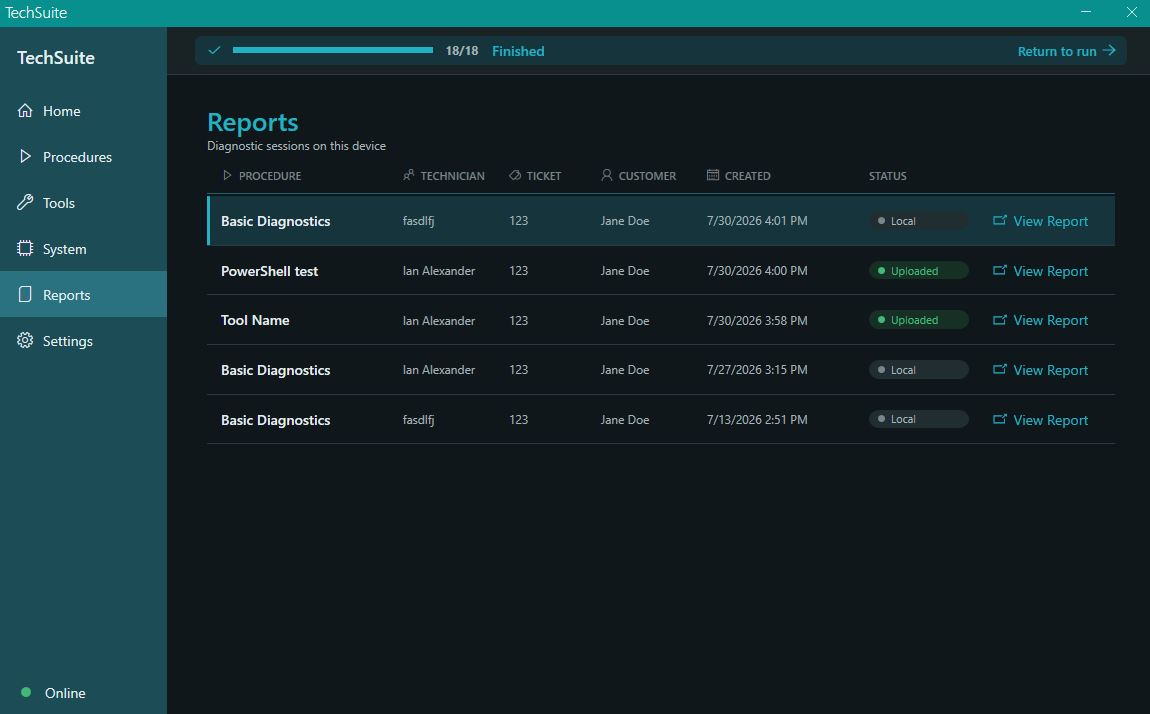
The Reports page is now a full-width table grouped by day, with a View Report button on each row rather than a detail panel that mostly repeated what the table already showed.
The System page splits into OS, Hardware, Storage, Network, and Insights, with severity dots calling out anything that needs attention and a Generate Insights action to run a fresh analysis on demand.
While rebuilding this we also fixed a batch of long-standing system information bugs: memory now reports total installed RAM (previously it could show a single stick’s size on a multi-stick machine), the network adapter is properly identified instead of occasionally landing on a debug adapter, and several fields that were quietly failing to collect now populate correctly.
Custom Apps and Offline Mode
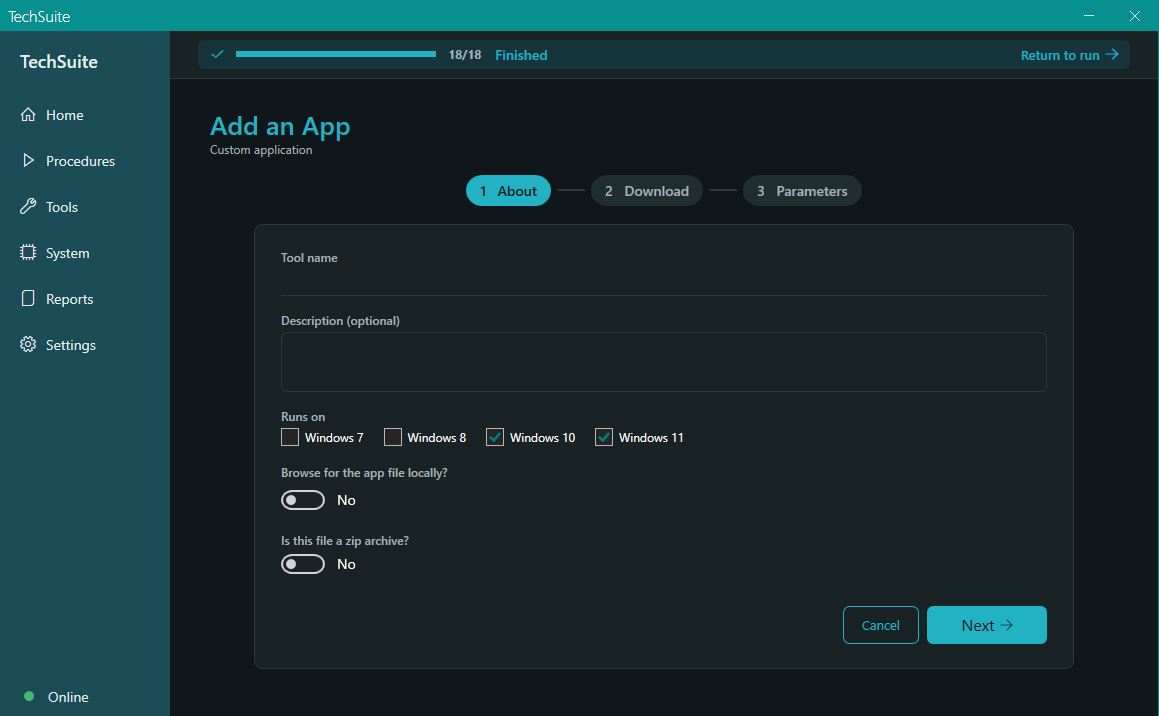
The Add My App wizard is cleaner and now handles more: zip archives, progress feedback while saving, a clear message when a file is too large for upload, and it drops you on your new app when you’re done rather than leaving you to go find it.
The Offline tab is now an explicit flow: Click “Check”, get a plain summary of what’s present and what’s missing, then download only what you actually need. Since TechSuite is portable and often lives on a USB stick, checking on demand is both faster and more accurate than the old automatic scan.
How to Get It
Log into the dashboard and head to your Downloads page. You’ll see a TechSuite 2.0 row with a Beta badge – download it there, or copy the direct URL for your deployment tool.
To be clear about what Beta means here: this is a full rewrite of the interface, and while we’ve been testing it hard, we’re sure there are rough edges we haven’t hit yet. Your existing TechSuite installs will keep working exactly as they do today and won’t be pulled onto 2.0 until we publidsh it for real.
We would genuinely love your feedback on this one. Email us at support@repairtechsolutions.com and tell us what feels better, what feels worse, and what’s broken.
Ian & Garrett